Google Ads can change branded search campaigns through auto-applied recommendations, automatic feature migrations, and product linking, each with separate controls and opt-out requirements. These changes can affect which searches trigger brand ads, which promotions customers see, and how branded demand is measured, potentially increasing acquisition costs or reducing margins. To protect brand campaign performance, advertisers need to disable unwanted automations, verify Google-initiated changes, and assign clear ownership to upcoming migration deadlines.
Branded search is often where a company captures demand generated by other marketing investments. When Google changes how that demand is matched, advertised, or attributed, the consequences extend beyond campaign settings to acquisition costs, promotional margins, and budget allocation.
What Are the Different Ways Google Ads Changes Accounts Automatically?
Google Ads changes accounts through three broad mechanisms: auto-applied recommendations, automatic feature changes and migrations, and automatic product linking. Each operates under different enrollment rules, settings, and timelines. Disabling auto-applied recommendations won't prevent a campaign migration, stop an eligible automated asset from appearing, or block a separately announced account-linking change.
These mechanisms can produce similar results (something changes in Google Ads without a practitioner manually editing the account), but they operate independently.
For example, an advertiser can disable every auto-applied recommendation and still have a legacy Search campaign upgraded to AI Max. Google can also extract promotional offers from an advertiser's website and display them as assets on eligible campaigns without a new recommendation being approved.
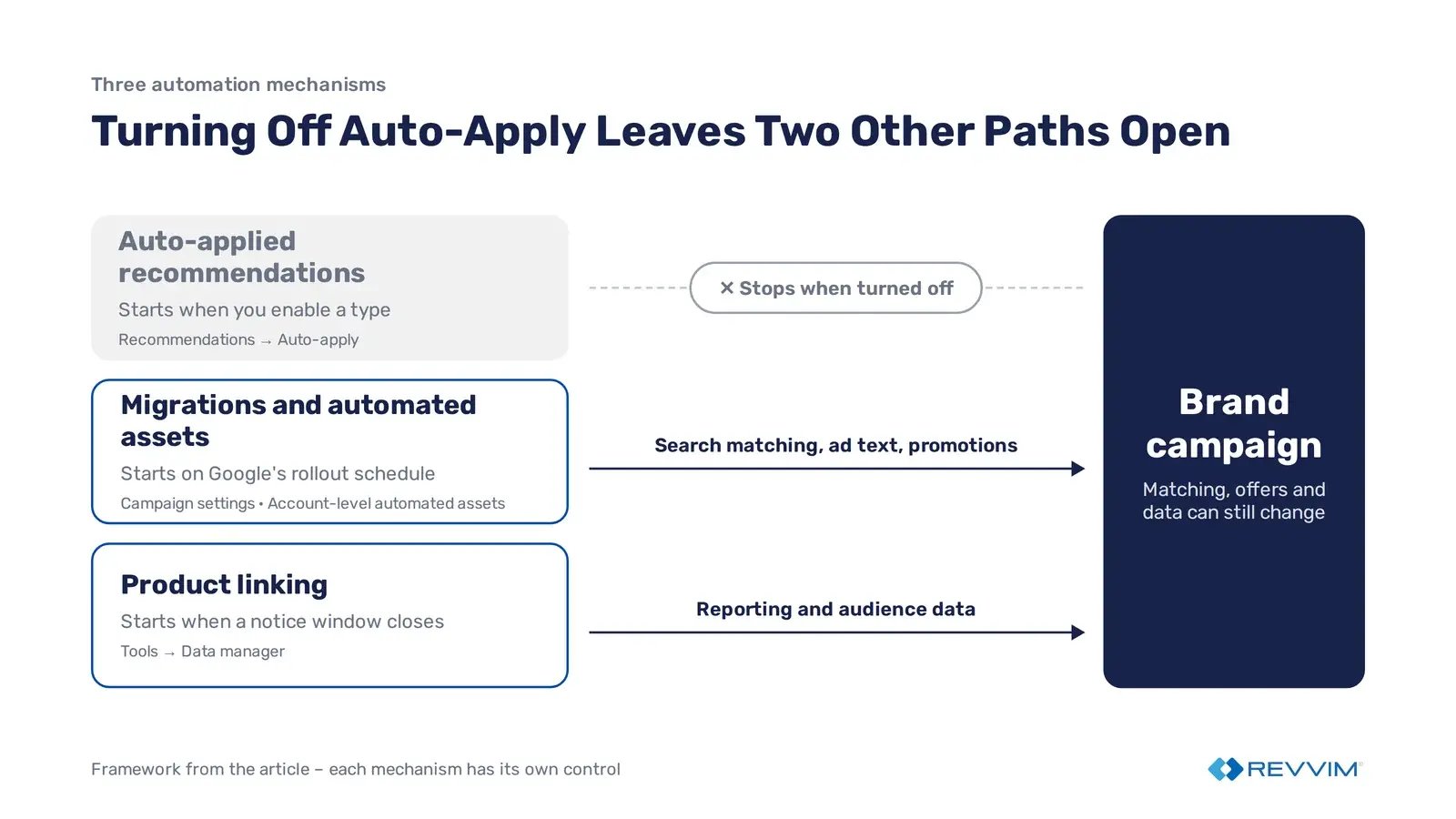
For branded search, the exposure extends beyond campaign performance. Changes to targeting can affect which searches trigger an ad. Automatically generated promotions can introduce offers that merchandising or legal hasn't approved for advertising. Product linking can affect the reporting and audience capabilities available through connected Google properties.
|
Mechanism |
Where it lives in Google Ads |
Default behavior |
Opt-out or control method |
|---|---|---|---|
|
Auto-applied recommendations |
Campaigns → Recommendations → Auto-apply |
Applies selected recommendation types after an advertiser enables them |
Disable unwanted recommendation types in Auto-apply settings and review previously applied changes in History |
|
Automatic feature changes and migrations |
Campaign settings, Assets → Account-level automated assets, and Google's migration notices |
Eligible campaigns may receive feature upgrades or automated assets according to separate rollout rules |
Review migration notices and campaign settings; disable automated asset types where an opt-out exists |
|
Automatic product linking |
Tools → Data manager → Connected products |
Certain announced programs may connect eligible Google properties unless advertisers opt out within the notification window |
Review linking notifications, use the program-specific opt-out, and inspect existing connections |
Google documents these mechanisms separately in its guidance on auto-applied recommendations, AI Max, automated promotions, and YouTube account linking.
Auto-applied recommendations require an advertiser to enable them. Automatic migrations follow Google's announced schedules for affected configurations. Automated assets have their own eligibility criteria and controls, while product-linking changes depend on the specific program and its notification window.
For account owners, the practical requirement is to document which mechanisms apply, where their controls live, who is responsible for reviewing them, and when each was last checked. Enterprise teams may distribute that responsibility across paid search, analytics, merchandising, and legal. Smaller teams still need a named owner, even when one person manages several controls.
Because Google introduces, changes, and retires automation features over time, this inventory needs regular review. A monthly check of the three mechanisms, supplemented by reviews whenever Google announces a migration or deadline, provides a repeatable way to prevent unreviewed changes from reaching brand campaigns.
The first place to establish that control is auto-applied recommendations, where advertisers can directly manage which recommendation types Google is authorized to implement.
How Do You Opt Out of Auto-Applied Recommendations?
To stop Google Ads from automatically applying recommendations, open Recommendations → Auto-apply settings and disable the recommendation types you don't want Google to implement. Review the History tab for changes already applied. Turning off auto-apply prevents future applications of those recommendation types, but it does not undo previous changes.
Google Ads allows advertisers to enable specific recommendation types, including changes affecting keywords, targeting, and campaign optimization. Once enabled, those recommendations can be implemented without a practitioner approving each individual change. Google's documentation says recommendations can only be auto-applied at the account level. A recommendation type enabled for non-brand campaigns is enabled for the brand campaign too.
For branded search, the concern is maintaining control over decisions that may have been made for a specific business reason. A negative keyword, for example, may exist to protect a campaign's intended traffic rather than simply eliminate inefficient searches. Removing it automatically could change which queries the campaign can serve against.
The opt-out process therefore has two parts: stop future automatic changes, then review what has already happened.
Step-by-Step: Disable Auto-Apply and Audit Previous Changes
|
Step |
Action in Google Ads |
What to verify |
|---|---|---|
|
1. Open Auto-apply settings |
Campaigns → Recommendations → Auto-apply settings |
Review the enabled recommendations under Maintain your ads and Grow your business. |
|
2. Disable unwanted recommendations |
Uncheck the relevant recommendation types and select Save. |
Pay particular attention to broad match additions, negative keyword removal, and bidding target adjustments. |
|
3. Review the History tab |
Recommendations → Auto-apply settings → History |
Check which recommendations were applied, how often, and when they were enabled. |
|
4. Inspect individual changes |
Campaigns → Change history |
Select the relevant date range and branded campaigns. Inspect the User column for automated actors such as Google Ads system or Recommendations Auto-Apply and review the affected settings. |
|
5. Review previous applications |
Open the relevant change details in Change history. |
Where an Undo option is available, evaluate the previous configuration before restoring it. Otherwise, make the necessary corrections manually. |
|
6. Verify the final state |
Return to Auto-apply settings and the affected campaigns. |
Confirm the unwanted recommendation types are disabled and that campaign settings match the team's approved configuration. |
Disabling auto-apply doesn't repair changes Google has already made. If the Remove conflicting negative keywords recommendation removed an exclusion that kept branded searches out of a non-brand campaign, turning off the recommendation won't put that keyword back.
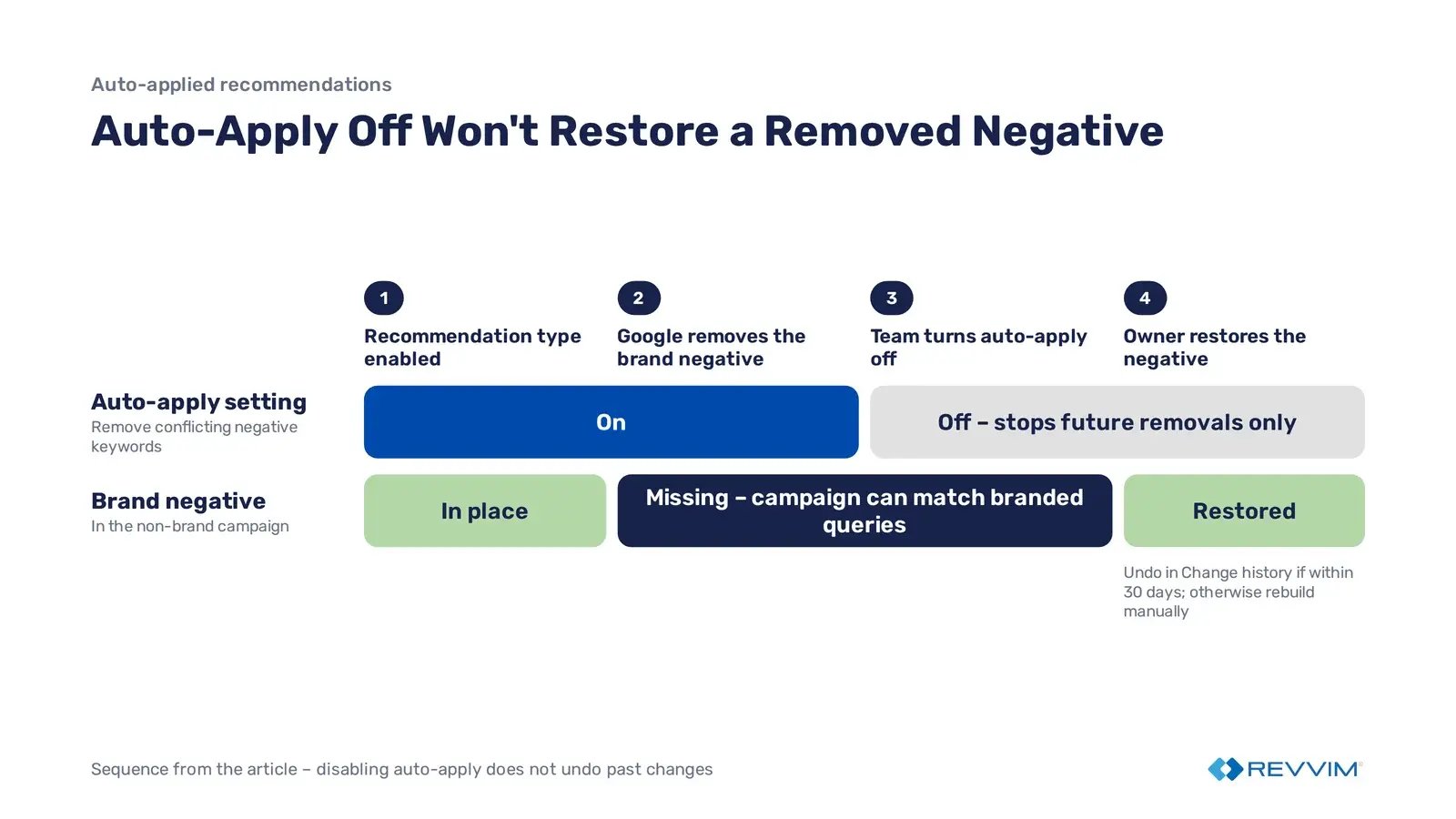
The paid search owner needs to identify what was removed, check whether the affected campaign can now match branded queries, and restore the exclusion if it still serves its intended purpose. In accounts with multiple agencies or internal teams, review who has permission to change Auto-apply settings so the approved configuration isn't altered without oversight.
The History tab and Change history serve different purposes. Auto-apply History is the most direct record of which recommendation types have been enabled and applied. Change history provides more granular records of edits to campaigns and account settings, including the user or system associated with a recorded change.
Practitioners should not rely exclusively on filtering Change history for Google Ads system. Automated changes may appear under different actor names, and some automatic account-level changes may not be represented at all. Start with Auto-apply History to identify applications, then inspect the relevant campaigns and dates in Change history.
For larger accounts, the review should also establish who enabled auto-apply in the first place. Google's documentation explains that the History tab shows when a recommendation was enabled, while Change history can help identify the user responsible for enrollment. This is particularly useful when several agencies, internal teams, or account managers have had access over time.
The operating standard for branded campaigns should be straightforward: auto-applied recommendations remain disabled unless the paid search owner has explicitly approved the recommendation type, documented its intended scope, and established a review process.
The next exposure comes from changes that do not depend on the account's auto-apply selections: Google's scheduled feature migrations and automatically generated assets.
Which Automatic Migrations Are Running Right Now, and Which Are Still Ahead?
As of October 2026, three Google Ads changes require attention: the September AI Max upgrades, automated promotion extraction beginning October 12, and the Dynamic Search Ads (DSA) migration scheduled for February 2027. The first two require immediate account reviews, while DSA advertisers still have time to test and prepare for the upcoming transition.
September 2026: AI Max Upgrades
Google's September 2026 migration changed how certain Search campaigns handle search matching and automatically generated ad text. Brand advertisers need to confirm that upgraded campaigns still capture the intended queries under the same controls.
Previously, advertisers could enable campaign-level broad match or Automatically Created Assets (ACA) as separate features. Google moved both into AI Max during its September 1–30 rollout.
The resulting settings depend on the original configuration:
- Campaign-level broad match: Migrated to AI Max with Search Term Matching enabled, but Text Customization and Final URL Expansion disabled.
- Automatically Created Assets: Migrated with Search Term Matching and Text Customization enabled, but Final URL Expansion disabled.
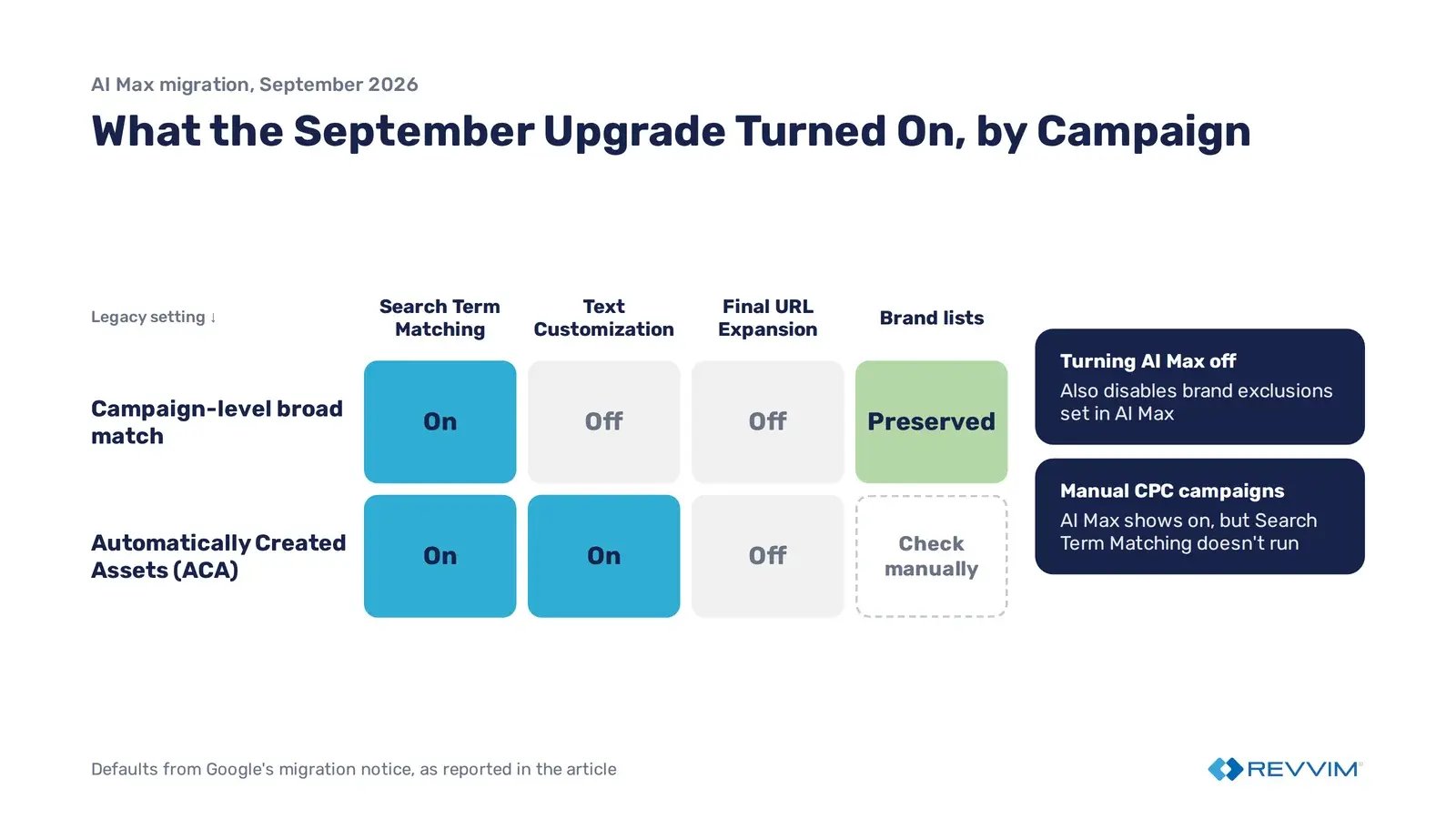
Google's migration announcement says existing brand inclusions and exclusions were preserved for campaign-level broad match migrations. Keyword prioritization is a separate issue. According to Google's AI Max documentation, broad keywords are no longer treated as exact match keywords in prioritization after the move to AI Max. Google's suggested fix is to add exact match copies of the keywords that need that priority, since converting broad keywords to exact removes their historical stats.
Consider an account that separates branded and non-branded Search campaigns to control budgets and evaluate acquisition costs. If search matching or keyword prioritization changes, the team needs to verify that branded demand is still being captured and attributed to the intended campaigns.
There's another setting worth checking before switching AI Max off. Brand exclusions configured through AI Max are disabled when AI Max is turned off. That means an advertiser trying to restrict search matching could also remove a brand protection the campaign was relying on. Review the brand settings under Campaign settings → AI Max → Brands before changing the main toggle, and confirm which exclusions will remain active afterward.
Bidding strategy also changes what the migration does. Google's AI Max FAQ says Search Term Matching won't work with Manual cost-per-click (CPC), so a migrated brand campaign on Manual CPC can show AI Max as enabled without the expanded matching that setting implies. Check the bid strategy before reading the search-term data.
Review AI Max settings, brand exclusions, and search-term reporting in affected campaigns.
In the search terms report, add the Source column and filter Match type for AI Max to separate broad match expansion from keywordless matching. Google notes that this filter doesn't include "Other search terms," so the filtered view may show lower numbers for AI Max. Compare branded query activity and traffic distribution across brand and non-brand campaigns before and after the migration. Low-volume search terms may remain hidden, so don't treat the report as a complete record of query overlap.
October 12, 2026: Automated Promotions
Google's automated-promotions feature can turn offers published on an advertiser's website into Google Ads promotion assets without manual approval. For brand campaigns, that means discounts can appear alongside searches for the company even when the paid search team hasn't chosen to advertise them.
Beginning October 12, 2026, Google started extracting eligible coupons and deals from advertiser websites for use in Search and Performance Max campaigns, according to Search Engine Roundtable's report on Google's notice. According to Google's documentation, the feature applies to campaigns with location assets and no active manual promotion.
That's an easy eligibility rule to miss. A retailer with location assets already configured may qualify without anyone on the paid search team deliberately enabling automated promotions. The first indication could be a Google-generated discount appearing alongside a branded ad.
Consider a retailer running a limited discount on one product category. The offer is published on its website, but the retailer hasn't approved it for broader advertising. Google may extract that offer and display it with an eligible branded Search ad.
Google says each automated promotion is eligible to serve for less than 24 hours and can be re-enabled as long as the offer is still visible on the website. In practice, the landing page decides which discounts appear, so a site change by merchandising can reach brand ads without anyone editing Google Ads.
The discount itself may be valid. The problem is that the decision to promote it has moved outside the team's normal approval process. That can create conflicts with merchandising plans, legal requirements, or margin targets, particularly when customers searching for the brand would have visited without seeing a discount.
In Campaigns → Assets, filter for Promotion assets and check the Added by column for Google AI. To disable extraction, open Assets → Account-level automated assets → Advanced settings → Automated promotions and turn it off. This control is separate from Auto-apply Recommendations, so disabling recommendations won't stop automated promotions. If discounts require merchandising or legal approval, use manually approved promotion assets instead.
February 2027: DSA Migration to AI Max
Google will automatically move remaining Dynamic Search Ads (DSA) configurations into Search ad groups using AI Max in February 2027. Advertisers need to verify that their existing targeting, exclusions, and landing-page controls continue working as intended after the migration.
DSA uses website content to identify relevant searches and select landing pages. For example, a retailer might use DSA to capture product searches not covered by its keyword campaigns while keeping searches for the retailer's name in a separate brand campaign.
The migration matters because those configurations will operate under AI Max. If targeting boundaries aren't preserved or configured correctly, a non-brand campaign could become eligible for branded searches. That could distort brand and non-brand performance reporting and complicate budget allocation. Treat it as a risk to verify after the migration.
Google delayed the migration from September 2026 to February 1–28, 2027, extending testing through January. Its developer announcement also identifies a January 15 reminder. Google's notices differ on the exact date when new DSA ad-group creation ends, so January is the safer internal preparation deadline.
Identify active DSA configurations and document their current targeting, negative keywords, brand exclusions, and landing-page coverage. Test the AI Max replacement before February, paying particular attention to campaigns designed to capture non-branded, long-tail searches.
After migration, review search-term activity and traffic distribution to confirm that branded queries are still being served by the intended campaigns. Don't assume that the absence of visible branded queries proves there's no overlap; low-volume search terms may be excluded from reporting.
Google Ads Automatic-Change Timeline and Status
|
Mechanism |
Status |
Relevant date |
Owner |
|---|---|---|---|
|
Broad match / ACA → AI Max |
Completed rollout; audit search matching |
Sep 2026 |
Paid Search |
|
Automated promotions |
Live; review advertised offers |
Oct 12, 2026 |
Paid Search + Merchandising |
|
DSA creation retirement |
Upcoming; exact cutoff requires confirmation |
Jan–Feb 2027 |
Paid Search |
|
DSA → AI Max migration |
Scheduled; test replacement |
Feb 1–28, 2027 |
Paid Search |
What Happened With the June 10, 2026 YouTube Auto-Link, and Why Does It Matter?
Beginning June 10, 2026, Google automatically linked certain eligible YouTube channels to associated Google Ads accounts unless advertisers opted out following an advance notification. The change illustrates a different automation risk: an account connection could proceed without anyone on the advertising team actively approving it.
In May 2026, Google notified some advertisers that associated YouTube channels would be linked to their Google Ads accounts automatically, according to Search Engine Roundtable's report on Google's notice. Advertisers who wanted to prevent the connection had to act before the June 10 rollout.
Unlike an auto-applied recommendation, this change did not depend on an advertiser previously enabling a recommendation category. For eligible accounts receiving the notice, inaction was enough for the link to proceed.
June 2026 YouTube Auto-Link Timeline
|
Timing |
What happened |
|---|---|
|
May 2026 |
Google sent advance notifications to affected advertisers, offering an opportunity to opt out. |
|
Before June 10 |
Advertisers could prevent the announced automatic link by following the notification's instructions. |
|
June 10, 2026 |
Automatic linking began for eligible accounts that had not opted out. |
|
After linking |
Advertisers could review connected YouTube channels in Google Ads and unlink them where appropriate. |
What Changed for Brand Advertisers?
Linking a YouTube channel to Google Ads can make channel engagement data and audience capabilities available for advertising. The connection does not itself launch campaigns or grant unrestricted access to the Google Ads account.
According to Google's YouTube linking documentation, linking can support reporting on organic video views and earned actions, along with audience segments based on interactions with the channel.
When a brand team manages YouTube and a performance team manages Google Ads, an automatic link could connect those properties before the two teams have agreed on how channel engagement data should be used for reporting or audience targeting.
Agency structures add another layer. Google's linking documentation notes that when a Google Ads account sits under a manager account, linking a YouTube channel can give that manager account access to the channel's metrics. With data segment sharing turned on, the manager account can also share data segments with other accounts it manages.
The link doesn't start targeting those audiences on its own, but it makes those capabilities available, potentially outside the company's established approval process.
Open Tools → Data manager → YouTube → Manage and link and review linked channels. Confirm that each connection is authorized, identify which team owns it, and unlink any connection that should not remain active.
The same applies to any Google notice with an opt-out deadline. If nobody reviews it, the deadline makes the approval decision.
How Do You Build a Monthly Change-History Audit for Brand Campaigns?
A monthly Google Ads audit should review changes made by automated actors alongside human edits, then verify the account settings that Change history may not capture. Filtering by campaign, date, and user helps identify recorded automated changes, while assigning a named owner to each upcoming migration ensures deadlines receive attention before Google acts.
Google Ads Change history provides up to two years of recorded account changes, including what changed, when it changed, and who or what made the edit.
To review automated changes:
- Open Campaigns → Change history in Google Ads.
- Set the date range to the previous calendar month.
- Filter to the relevant brand campaigns and review the available change types.
- Inspect the User column for automated actors, including entries such as Google Ads system, Recommendations Auto-Apply, or Google Ads API. Use the available user filter where supported.
- Expand relevant entries to identify the settings, keywords, assets, or other campaign elements affected.
The User column requires interpretation. An API change may come from an agency tool or an internal script rather than Google automation. Likewise, not every automatic feature migration or product-linking event is necessarily recorded in Change history.
Timing matters for corrections. Google's account history documentation says most changes can be undone only within 30 days, so a change made early in the previous month may need to be rebuilt manually by the time the audit finds it.
Change history is the starting point, not a complete audit. Cross-check it against Auto-apply History, AI Max settings, automated assets, and linked products to identify changes that may not appear in the report.
Monthly Brand Campaign Audit Checklist
Assign each review to a specific person who can investigate discrepancies and approve corrective action. The audit is complete only when the owner has recorded the result, not merely checked the report.
|
Monthly check |
What to verify |
Suggested owner |
|---|---|---|
|
Change history |
Automated actors, unexpected edits, and changes to brand campaign settings |
Paid Search Lead |
|
Auto-apply History |
Recommendations applied during the month and recommendation types still enabled |
Paid Search Lead |
|
AI Max settings |
Search Term Matching, Text Customization, Final URL Expansion, and brand restrictions |
Paid Search Manager |
|
Automated promotions |
Google-generated offers appearing without merchandising or legal approval |
Paid Search + Merchandising |
|
Linked products |
YouTube and other connected properties remain authorized |
Analytics or Account Administrator |
|
Upcoming migrations |
Published deadlines, affected campaigns, testing progress, and required decisions |
Named Migration Owner |
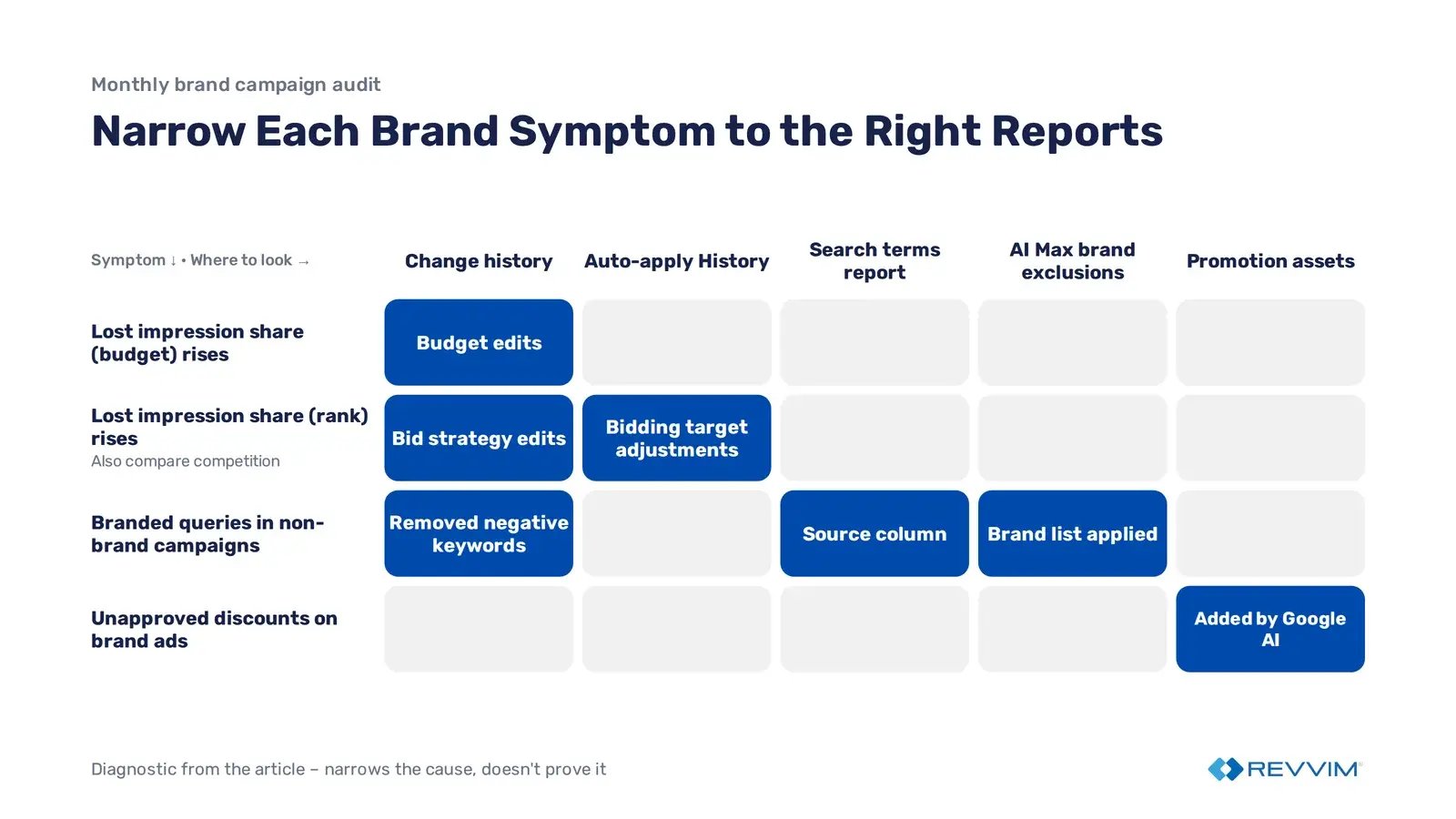
If branded cost per click rises or branded impression share falls after a setting change, use the symptom to narrow the cause before changing anything:
- Search lost impression share (budget) rises: the brand campaign is running out of budget. Check Change history for budget edits.
- Search lost impression share (rank) rises: Ad Rank is limiting visibility. Check Auto-apply History for bidding target adjustments and Change history for bid strategy edits, then compare competitive conditions for the same period.
- Branded queries appear in non-brand campaigns: query matching has changed. Check the Source column in the search terms report, removed negative keywords in Change history, and AI Max brand exclusions.
- Unapproved discounts appear on brand ads: automated promotions may be active. Filter Promotion assets for Added by Google AI.
These checks won't prove that automation caused the movement, but they help determine whether the change deserves further investigation.
For every unexpected change, record the affected campaign, previous and current settings, potential business impact, corrective action, and responsible owner. Apply the same discipline to upcoming migrations: assign someone to test the replacement, someone authorized to approve it, and a deadline for making that decision.
Google Ads automation will continue to evolve, and advertisers won't always have the option to prevent a platform-wide change. But they can control how quickly those changes are identified, evaluated, and incorporated into their account strategy.
Branded search deserves explicit ownership because it captures demand the business has already invested in creating.
Changes affecting brand campaigns should be reviewed against acquisition costs, margins, and budget priorities before they become the new operating baseline.
Frequently Asked Questions
How do I stop Google Ads from applying changes automatically?
To stop auto-applied recommendations, go to Campaigns → Recommendations → Auto-apply settings, disable unwanted recommendation types, and save. This prevents future applications but does not reverse previous changes. Automatic migrations, automated assets, and product linking have separate controls, so advertisers must review each mechanism individually.
Which automatic migrations have deadlines?
Google's campaign-level broad match and Automatically Created Assets upgrades rolled out in September 2026, while automated promotions began October 12, 2026. The Dynamic Search Ads migration is scheduled for February 1–28, 2027, with a January 15 reminder. Advertisers should verify completed changes and prepare affected DSA configurations before February.
How do I audit automated changes in Change history?
Open Campaigns → Change history, select the previous month's date range, and filter to branded campaigns. Review the User column for automated actors such as Google Ads system or Recommendations Auto-Apply, then inspect relevant changes. Cross-check Auto-apply History, AI Max settings, automated assets, and linked products because Change history does not capture every automatic account change.
Ready to see if you’re overpaying for branded search?
Request a demo to start the risk-free, 30-day AdAi trial to quantify your trapped capital and reclaim budget to fund your growth campaigns.