Google Ads and Google Analytics 4 (GA4) often report different conversion totals for the same brand campaigns because they use different rules for conversion timing, counting, attribution, and tracking. These discrepancies don't necessarily indicate a tracking problem, but they can create confusion when evaluating brand performance and reporting results to leadership. Understanding where the numbers diverge helps separate expected reporting differences from actual measurement issues and establish which data to trust for each decision.
Which Date Does Each Platform Assign the Conversion To?
Google Ads reports conversions against the date of the ad interaction, while GA4 reports key events on the date they occur. A customer can click a brand ad on one day and purchase on another, leaving the two platforms reporting the same transaction in different periods.
If a customer clicks an ad on July 19 but doesn't purchase until July 20, Google Ads attributes the conversion to July 19, the click date, but GA4 records the key event on July 20, when the purchase actually happened.
Neither platform is necessarily wrong. They're using different dates.
For brand campaigns, where many customers convert in the same session, this difference may be relatively small. But it becomes a real reporting problem at month-end.
Consider a scenario where a customer clicks a branded search ad on July 31 and completes a $5,000 purchase on August 2. Google Ads assigns that $5,000 in conversion value to July. GA4 records the purchase in August. Finance recognizes the transaction according to its own accounting rules.
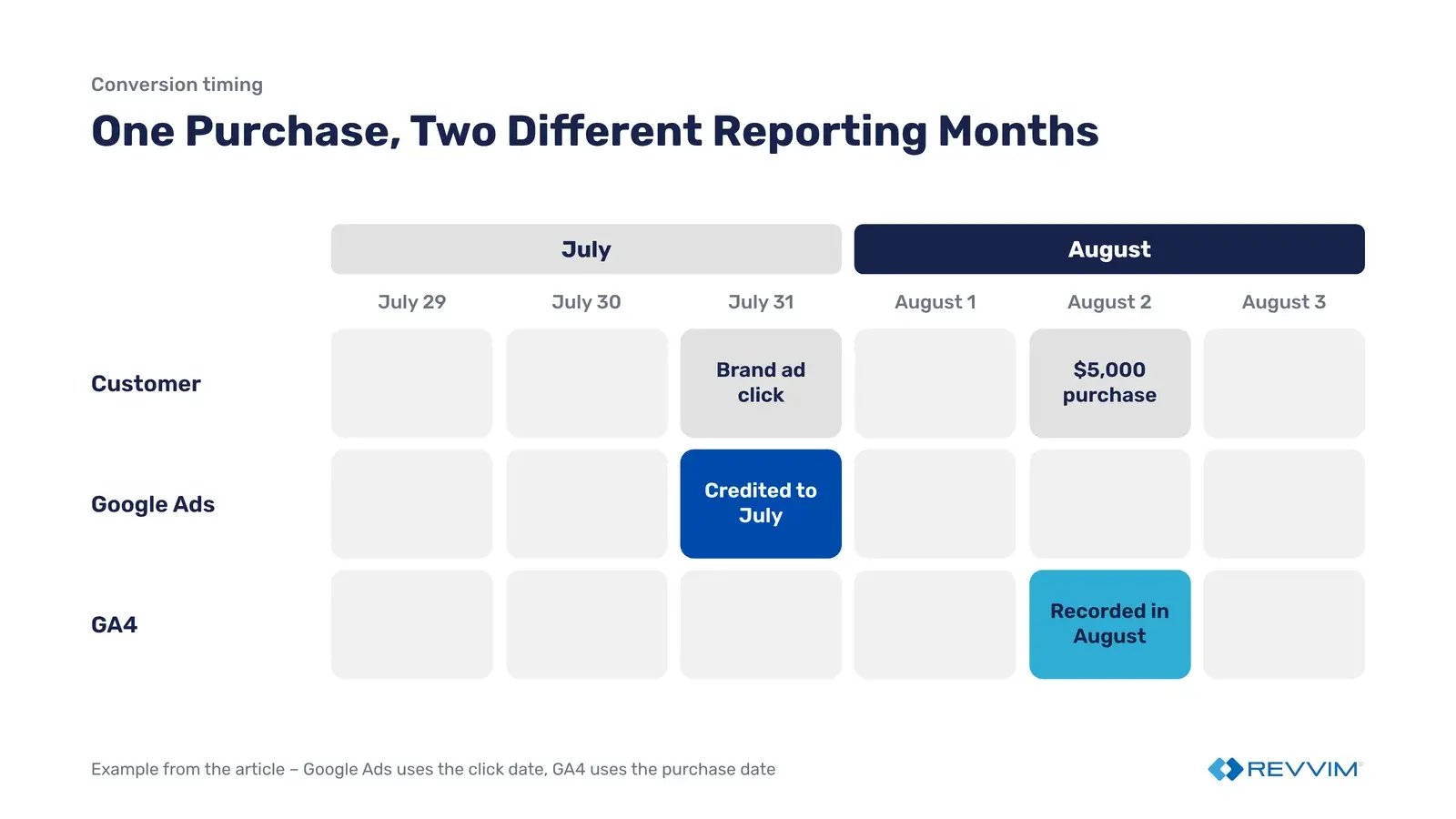
Now multiply that timing difference across purchases that don't happen immediately. July's reported brand revenue can look stronger in Google Ads than in GA4, while August shows the reverse. That doesn't mean either platform lost the transactions. The platforms are assigning them to different reporting periods.
This also explains one of the more frustrating parts of reconciling Google Ads performance: last month's conversion totals can continue increasing after the month has ended. Conversions completed in August can still be credited to July clicks. Pull the same July campaign report on August 3 and August 15, and the numbers may be different even though July's clicks and spend haven't changed.
GA4 isn't completely static either. Google states that attribution credit for key events can change for up to 12 days after the key event is recorded, as its key event modeling improves. That means exporting both platforms immediately after month-end creates two moving targets.
The first reconciliation step is buried in Google Ads reporting columns. Open the campaign reporting table, click the Columns icon, choose Modify columns, and add All conv. (by conv. time).
That column reports conversions based on when they occurred rather than when the ad interaction happened. It gives the Google Ads report a date basis that's more comparable to GA4.
If the GA4 number you're matching against is a single purchase key event, add Conversions (by conv. time) next to it as well. That column keeps the Google Ads side limited to the primary actions your campaign optimizes toward, so a secondary or duplicate action doesn't inflate the comparison.
But don't expect the totals to suddenly match. All conv. can include secondary conversion actions and other conversion types that aren't in the standard Conversions column. Aligning the date removes one source of disagreement; it doesn't resolve differences in which actions each platform counts or how credit is assigned.
There's one more setting that routinely gets overlooked: time zones. Google Ads reports using the account's time zone. GA4 uses the Analytics property's time zone. A purchase close to midnight can land on different calendar days even when both reports use the conversion date.
Before escalating a discrepancy to analytics or declaring tracking broken, confirm the time zones, compare the same conversion actions, and check the conversion-time columns. Save the reporting date and extraction date with the reconciliation so the next person knows exactly which version of the numbers was reviewed.
What Does Each Platform Count as a Conversion in the First Place?
Google Ads counts conversions according to the conversion actions selected in the account, whether those actions are primary or secondary, and whether each action counts one conversion or every conversion. GA4 records key events according to its own event definitions. Even when both platforms receive the same customer activity, their reported conversion totals can differ before attribution enters the picture.
This is one of the first places to look when brand conversion numbers don't reconcile. Two reports can cover the same campaigns, dates, and customers but still be counting different things.
Start with the One versus Every setting in Google Ads. Each conversion action has a counting method that determines how many conversions can be credited to a single ad interaction.
One counts a maximum of one conversion per ad interaction for that conversion action, regardless of how many times the customer completes it.
Every counts each qualifying conversion after the ad interaction, subject to the action's other settings.
For example, a customer clicks a brand ad and makes two separate purchases within the conversion window. If the purchase action is set to One, Google Ads reports one conversion. If it's set to Every, Google Ads reports two conversions. Same customer, same ad click, same purchases, but different reported totals based entirely on the counting setting.
For a purchase conversion, Every is generally appropriate because multiple purchases represent multiple transactions. For a lead form, One may make more sense if the business only wants to count one lead from the same ad interaction.
Brand campaigns expose this difference when existing customers return to make additional purchases or complete multiple tracked actions.
The next issue is primary versus secondary conversion actions, and this is where account configuration can make reconciliation especially frustrating.
In Google Ads, primary conversion actions normally appear in the Conversions column and are eligible for bidding optimization. Secondary actions are generally excluded from that column unless included in a custom goal, but they remain visible in All conv.
When you create a Google Ads conversion from a GA4 key event in the Google Analytics interface, it's set as a secondary action by default. This helps prevent double counting. For example, if a purchase is already tracked through a Google Ads conversion tag, importing that same purchase from GA4 could create two conversion records for one sale. Keeping the GA4 conversion secondary allows you to see it in the All conv. column without adding it to the standard Conversions total used for bidding.
Many established Google Ads accounts have more than one tracking method for the same business outcome. A purchase might be recorded through a native Google Ads conversion tag and also imported from GA4.
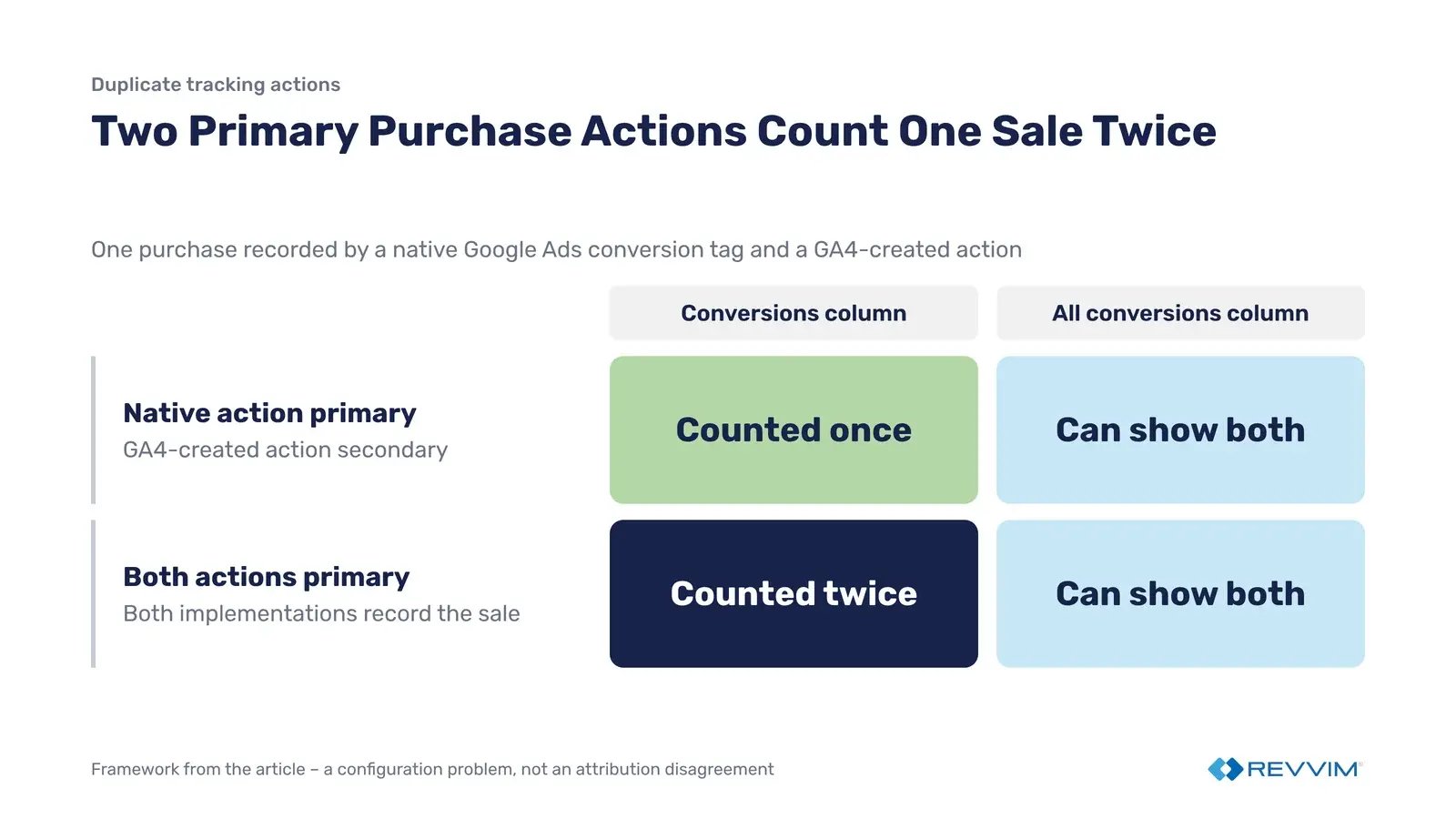
If the native purchase action is primary and the GA4-created purchase action is secondary, the standard Conversions column generally counts the native action while All conv. can show both. Make both actions primary and the same underlying purchase can be counted twice in the Conversions column if both tracking implementations record it.
This is not an attribution disagreement. It's a conversion configuration problem.
|
Setting |
Google Ads Behavior |
GA4 Behavior |
Effect on Brand |
|---|---|---|---|
|
One counting |
Counts one conversion per ad interaction for the action |
Records qualifying key events according to event configuration |
Multiple purchases or leads may produce different totals |
|
Every counting |
Counts every qualifying conversion for the action |
Records qualifying key events |
Totals may align more closely when the underlying events and definitions match |
|
Primary action |
Normally included in Conversions |
No equivalent primary designation for standard key-event reporting |
Google Ads can include actions that GA4 reports under different event definitions |
|
Secondary action |
Excluded from Conversions unless used in a custom goal; included in All conv. |
Key events remain reportable in GA4 |
GA4 can show activity missing from the standard Google Ads Conversions column |
|
Duplicate tracking actions |
Native and GA4-created actions can both count the same outcome |
The original key event remains recorded in GA4 |
Google Ads can overstate brand conversions when duplicate actions are included |
The practical audit starts in Google Ads → Goals → Conversions → Summary. Review the conversion actions associated with the brand campaign's goals, including each action's source, counting method, and primary or secondary designation. Then compare those definitions against the corresponding key events in GA4.
Don't stop at the account-level list. Google Ads campaigns can use account-default goals or campaign-specific goals, so the actions relevant to one campaign may not be the same as those used by another. The conversion action can exist, fire correctly, and still be absent from the Conversions column being reviewed.
The interface adds another complication: the standard Conversions and All conv. columns can look like interchangeable performance totals when they are not. Adding Segment → Conversions → Conversion action to the campaign report helps expose which actions contribute to the reported numbers. Check that breakdown before comparing the Google Ads total against a single GA4 purchase or lead event.
For a brand campaign, the objective is to establish exactly which business outcomes are represented in each number. A Google Ads total that includes purchases and qualified leads cannot be reconciled directly against a GA4 report filtered to purchases alone. Neither report has to contain a tracking error for that comparison to fail.
Before investigating attribution, confirm that both platforms are counting the same events under comparable rules. Document the conversion actions, counting methods, and primary or secondary settings, then isolate any duplicate tracking. Until those definitions are aligned, the gap between Google Ads and GA4 is partly a difference in what the account was configured to count.
How Does Attribution Differ Between the Two Systems?
Google Ads and GA4 can assign credit for the same conversion to different marketing channels because they don't always consider the same customer interactions. Google Ads reporting generally attributes conversions across Google-paid interactions, while GA4 can assign credit across both paid and organic channels. The difference depends on which channels are eligible to receive credit and how the conversion is configured.
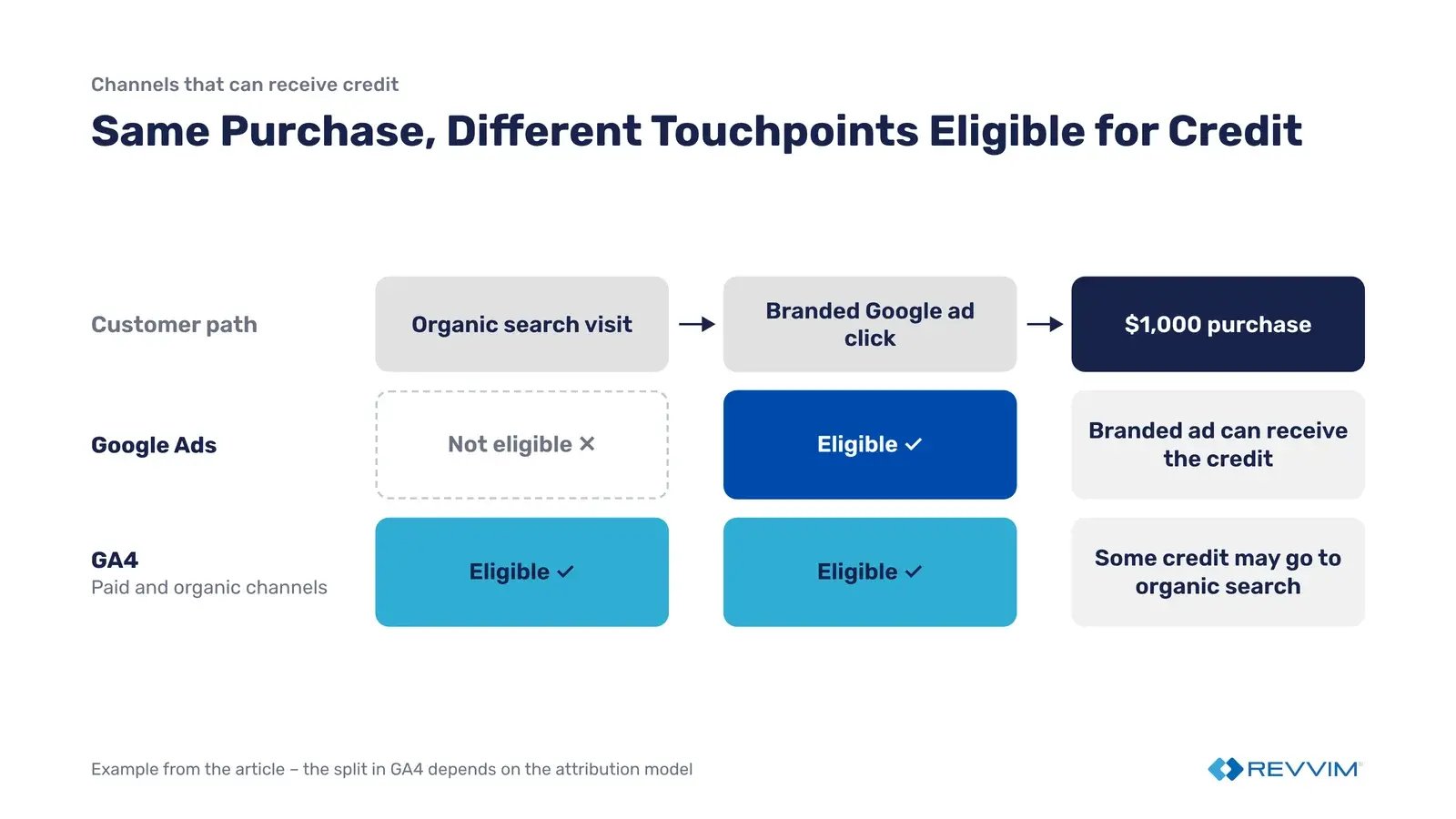
Consider a scenario where someone discovers a company through an organic search, returns a few days later through a branded Google ad, and completes a $1,000 purchase.
Google Ads can attribute the purchase to the branded ad because it evaluates eligible Google Ads interactions. GA4, when configured to consider paid and organic channels, can also consider the earlier organic interaction. Depending on the attribution model, GA4 may assign some of the conversion credit to organic search rather than giving the branded ad the same credit shown in Google Ads.
The purchase and the customer's behavior are identical in both reports. The two platforms are simply evaluating different sets of interactions when assigning conversion credit.
Which Channels Can Receive Credit?
GA4 has a setting called Channels that can receive credit, which determines which marketing channels are eligible for attribution.
Google provides two options:
Google paid channels: Conversion credit is assigned to eligible Google-paid interactions. This is the default scope for Google Ads conversion reporting.
Paid and organic channels: Conversion credit can be assigned across eligible paid and organic marketing channels, including channels outside Google Ads. This is the default scope for Google Analytics reporting.
The setting is available under Admin → Data display → Events → Attribution settings in GA4, although the available controls can vary as Google rolls out newer conversion-level settings.
|
Attribution Scope |
What Google Ads Can See |
What GA4 Can See |
Effect on Brand Conversions |
|---|---|---|---|
|
Google paid channels |
Eligible Google-paid ad interactions |
Eligible Google-paid interactions for conversions using this scope |
Brand conversion credit can be more comparable when other settings also match |
|
Paid and organic channels |
The setting applies to linked Google Ads accounts, and conversion windows and counting settings are managed in Google Analytics for web conversions |
Eligible paid and organic interactions across measured channels |
GA4 may assign some conversion credit to other channels, reducing the credit reported for branded paid search |
|
Customer touching multiple channels |
Google-paid interactions eligible for Google Ads attribution |
Additional measured interactions, such as organic search or email |
The same purchase can produce different brand-attributed conversion totals |
There are important configuration details behind these options.
Google's attribution settings documentation explains that changing which channels can receive credit affects reporting going forward rather than rewriting historical attribution. The setting also affects linked Google Ads accounts, so it shouldn't be changed casually just to make one brand campaign report look closer to GA4.
For web conversions configured to use paid and organic channels, conversion-window and counting settings are managed in Google Analytics rather than independently in Google Ads. That matters during reconciliation because the person reviewing Google Ads may be looking for a setting that is now controlled in GA4.
Google has also been changing how these controls work. In 2026, Google introduced per-conversion attribution settings for web conversions in beta, allowing more independent control over attribution configuration. Google specifically identifies the change as a way to remove a common cause of reporting discrepancies between Google Ads and Analytics. The feature isn't available in every GA4 property.
Additional 2026 updates introduced custom whole-number conversion windows on August 11 and extended independent attribution settings to app conversions on September 29. These changes make it especially important to inspect the settings available in the actual property rather than assume every linked account follows the same configuration.
For reconciliation, start by confirming which attribution scope applies to the conversion being compared. Then verify that the Google Ads conversion action and the GA4 report are using comparable channel eligibility and attribution settings.
Don't change the attribution scope simply to force the totals together. A setting that makes brand conversions appear more consistent between platforms can also change how other channels receive credit. For an enterprise account with multiple Google Ads accounts linked to the same GA4 property, that decision needs coordination between paid media and analytics teams.
Where Does the Tracking Layer Itself Leak?
Google Ads and GA4 can report different conversions because clicks, traffic-source information, and conversion events don't always make it through the tracking process intact. Redirects that strip click identifiers, missing Google tags, inconsistent Urchin Tracking Module (UTM) parameters, consent restrictions, and delayed conversion imports can all create discrepancies that have nothing to do with attribution settings.
These problems are harder to diagnose because the reports often look normal. Google Ads continues recording clicks, GA4 continues recording sessions and purchases, and neither interface necessarily shows an obvious error. The discrepancy only becomes visible when someone tries to reconcile the numbers.
Auto-Tagging and Manual UTMs Can Create Reporting Gaps
Auto-tagging is how GA4 recognizes Google Ads traffic, and incomplete manual UTMs can cause GA4 to classify a brand click as something other than paid search.
Google Ads automatically adds a Google Click Identifier (GCLID) to ad clicks. GA4 uses that identifier to recognize Google Ads traffic and associate visits with the correct campaigns.
Some advertisers also add manual UTM parameters to their Google Ads URLs. Normally, this isn't a problem. GA4 prioritizes valid auto-tagging information over manual UTMs, and there is no setting to reverse that priority.
The problem starts when the GCLID is missing or can't be used.
Denied consent can do the same thing. When consent for ad user data is denied through consent mode, Google Analytics can't use the GCLID as intended, and any UTMs on the URL take over the traffic source dimensions. Google's documentation says a missing UTM then shows up as (not set), and its Google Ads report only displays traffic where auto-tagging is enabled and the GCLID can be used as intended. Google describes this behavior for properties it has opted in, so confirm yours is one of them.
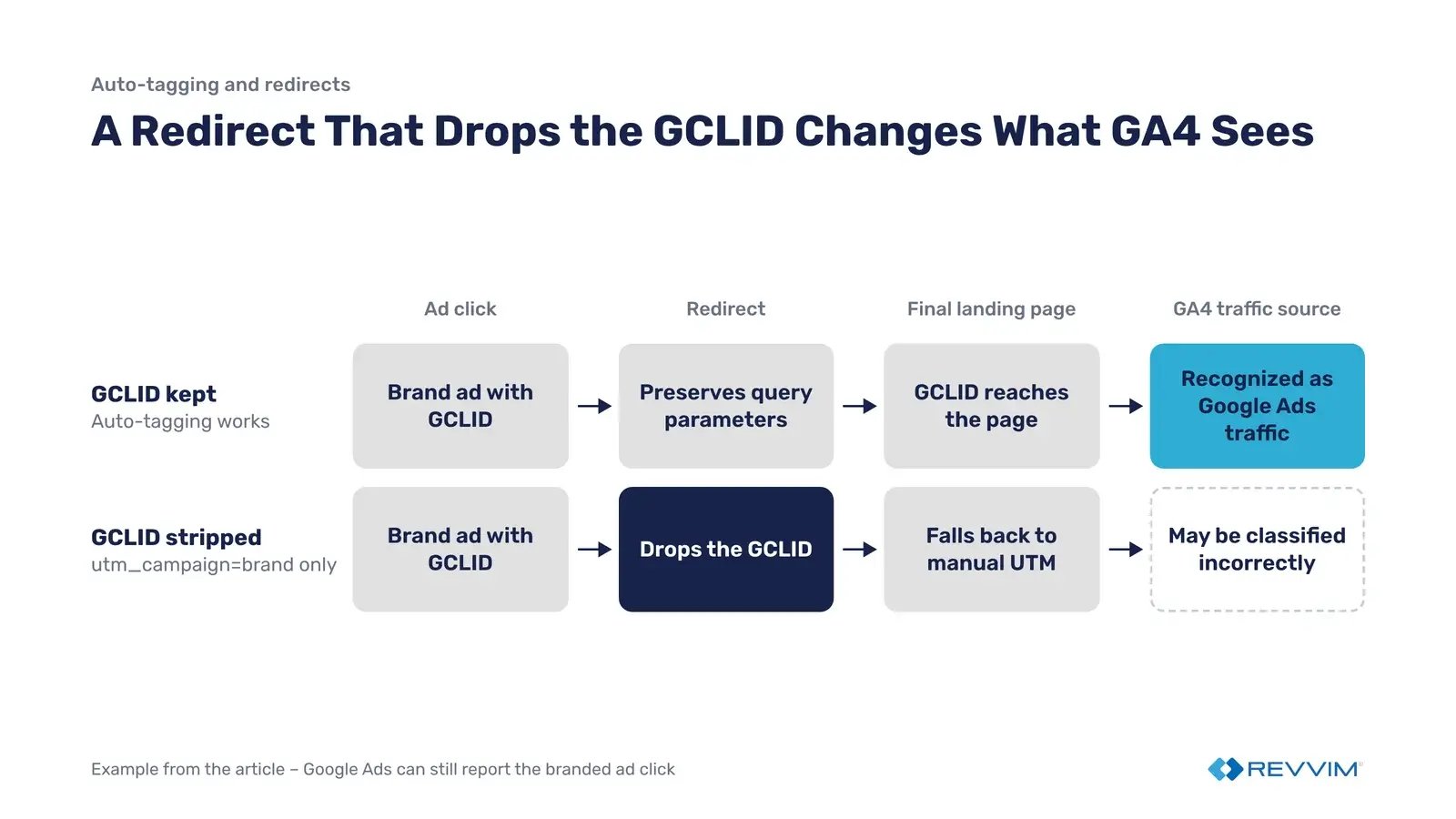
Consider a brand ad with a URL containing utm_campaign=brand. If a redirect removes the GCLID, GA4 falls back to the manual UTM information. But the campaign name alone doesn't tell GA4 that the visitor came from Google paid search. Without parameters such as utm_source=google and utm_medium=cpc, GA4 may classify the session incorrectly.
Google Ads can still report the branded ad click and potentially its associated conversion, while GA4 may assign that activity to a different traffic source.
The fix is to keep auto-tagging enabled, make sure redirects preserve the GCLID, and avoid incomplete manual UTMs. If manual tagging is required, populate all relevant UTM parameters consistently so GA4 has usable campaign information when auto-tagging isn't available.
Redirects Can Strip the GCLID
A redirect can break the connection between an ad click and the eventual conversion without preventing the customer from reaching the website.
This happens with tracking redirects, URL rewrites, and landing-page redirects that fail to preserve query parameters.
Google's recommended test is to click through the ad URL and confirm that the GCLID survives every redirect and reaches the final landing page unchanged.
Don't just check whether the landing page loads. A redirect can successfully deliver the customer while dropping the tracking identifier.
Inspect the final URL and redirect chain using browser developer tools. If the GCLID disappears, the issue needs to be corrected in the redirect configuration, website routing, or tracking template.
Missing Tags and Cross-Domain Gaps Break the Journey
A Google tag installed on the homepage doesn't guarantee that every conversion path is covered.
Brand traffic may land on a product page, move through a checkout hosted on another domain, or complete a lead form on a separate subdomain. If the required tags or cross-domain configuration are missing, GA4 may lose continuity between the original visit and the conversion.
Use the Tag coverage summary in Google tag settings to identify pages where the tag is missing or coverage needs attention. Then test the actual path from ad click to conversion, including checkout pages, form confirmation pages, and any domain transitions.
For cross-domain setups, verify that the GA4 configuration preserves the user's session across the domains involved. A conversion can still appear in GA4 even when the original paid-search session is no longer properly connected to it.
Consent Restrictions and Modeling Change the Reported Totals
Consent restrictions and modeling mean some brand conversions can't be observed directly, so Google Ads and GA4 can report different totals without any tag failing.
Not every conversion can be observed directly.
Consent choices, browser cookie restrictions, Apple's App Tracking Transparency (ATT) framework, and cross-device activity can limit the information available to Google Analytics.
GA4 uses modeled key events where Google has sufficient information to estimate activity that cannot be directly observed. Google Ads conversions created from GA4 key events can also include modeled conversions.
Google documents another complication: when there isn't enough information to model certain key events, GA4 may attribute those events to Direct rather than the marketing channel that originally brought the customer to the site.
That can leave a brand campaign showing conversions in Google Ads that aren't credited to paid search in the corresponding GA4 report.
Modeling also makes reconciliation less straightforward. A modeled conversion isn't an individually observed transaction that can always be traced through a click identifier and matched row for row between platforms.
Don't treat modeled conversions as errors, and don't disable consent controls to close the gap. Review consent-mode implementation, confirm tags are firing according to consent choices, and distinguish observable tracking failures from differences introduced by modeling.
Tracking Leak Checklist
|
Potential Cause |
What to Check |
Where to Investigate |
|---|---|---|
|
Auto-tagging and manual UTMs |
Confirm auto-tagging is enabled and manual parameters aren't producing inconsistent campaign classifications |
Google Ads account settings, final URLs, and GA4 traffic acquisition reports |
|
GCLID lost in redirects |
Verify the GCLID survives the redirect chain and reaches the final landing page |
Browser developer tools, redirect rules, and tracking templates |
|
Missing Google tags |
Identify landing pages, checkout pages, or confirmation pages without the required tag |
Google tag coverage summary and Tag Assistant |
|
Cross-domain tracking gaps |
Confirm sessions and attribution information persist across checkout or form domains |
GA4 cross-domain settings, Tag Assistant, and DebugView |
|
Consent and modeled conversions |
Review consent implementation and determine whether modeled reporting contributes to differences |
Google tag consent configuration and GA4 reporting |
|
Time zone differences |
Confirm the Google Ads account and GA4 property use comparable reporting time zones |
Google Ads account settings and GA4 property settings |
|
Conversion import delays |
Allow for Google Analytics conversions to take up to 24 hours to appear in Google Ads |
Google Ads conversion action status and reporting timestamps |
Which Number Should Go in the Board Deck?
Use Google Ads conversion data to explain the results Google Ads is optimizing toward, and GA4 to explain how paid search contributes within the broader marketing channel mix. Neither number should be presented as the definitive total of actual sales or revenue. Each metric needs a consistent source and definition so leadership knows exactly what it's looking at.
The mistake is pulling brand conversions from Google Ads one month, using GA4 the next, and presenting both under the same label.
A change in the reported number may have nothing to do with campaign performance. The reporting source, conversion definition, or attribution rules may have changed.
For every brand conversion metric in executive reporting, document the system of record, its definition, the person responsible for validating it, and the acceptable variance between systems.
|
Metric |
System of Record |
Definition |
Owner |
Variance Tolerance |
|---|---|---|---|---|
|
Brand conversions |
Google Ads |
Primary conversion actions credited to brand campaigns |
Paid Media |
Established historical range |
|
Brand-attributed key events |
GA4 |
Key events attributed to branded paid search under GA4 settings |
Analytics |
Established historical range |
|
Brand conversion value |
Google Ads |
Conversion value attributed to brand campaigns |
Paid Media / Finance |
Historical range and transaction review |
|
Actual transaction revenue |
Finance / Ecommerce |
Recorded sales under company accounting rules |
Finance |
Reconcile to transaction records |
The goal is to make sure the business understands what each number represents and uses the same definitions every reporting period.
Google acknowledges that discrepancies between Google Ads and GA4 are common, even with correct tracking. Its own conversion tracking documentation says discrepancies of often up to 20% are expected when comparing Google Ads with tools like Google Analytics, largely because of attribution differences. There is no universal variance percentage that should be treated as acceptable for every account.
Instead, establish a baseline using the account's own historical data.
Compare several prior periods using consistent conversion actions, attribution settings, reporting dates, and campaign definitions. Avoid recent periods where conversions are still arriving.
Calculate the difference consistently:
Reporting variance = (Google Ads conversions − GA4 conversions) ÷ GA4 conversions × 100
Consider a hypothetical account where Google Ads reports 1,100 brand conversions and GA4 reports 1,000. The reporting variance is 10%.
A 10% variance only becomes meaningful when you compare it against previous periods.
If the account typically shows a similar gap, the difference may reflect established reporting behavior. If the gap suddenly widens, investigate conversion settings, attribution, tagging, and reporting scope before concluding that performance has changed.
If the difference hasn't been explained, report it as an open measurement issue with a named owner and investigation timeline.
Analytics should own the reconciliation methodology, paid media should validate Google Ads settings, and finance should approve how the numbers are presented. Smaller teams may combine these responsibilities, but ownership still needs to be clear.
Finally, label each number with its platform, conversion definition, attribution basis, and reporting period. Include the extraction date so future comparisons account for conversion lag.
A board deck can carry two different brand conversion numbers as long as each has a consistent definition, a documented explanation for the known gap, and a named owner when that gap changes.
Frequently Asked Questions
How Much of a Gap Between Google Ads and GA4 Is Normal?
There is no universal acceptable discrepancy between Google Ads and GA4. Establish a baseline by comparing several historical periods using consistent conversion definitions, attribution settings, and reporting dates. Use mature reporting periods to account for conversion lag. Investigate when the gap moves outside the account's established range.
Should I Use UTM Parameters on My Google Ads Links?
Google Ads auto-tagging should be the primary method for identifying paid search traffic in GA4. Manual UTMs are generally unnecessary unless another reporting system requires them. If you use UTMs, populate all relevant parameters consistently and make sure redirects preserve the GCLID so GA4 can correctly identify Google Ads traffic.
Why Does GA4 Show Fewer Brand Conversions Than Google Ads?
GA4 may report fewer brand conversions because it considers other marketing channels when assigning conversion credit, while Google Ads focuses on eligible Google-paid interactions. Differences in conversion counting, reporting dates, consent modeling, and tracking can also contribute. Compare the same conversion actions and attribution settings before assuming conversions are missing.
Ready to see if you’re overpaying for branded search?
Request a demo to start the risk-free, 30-day AdAi trial to quantify your trapped capital and reclaim budget to fund your growth campaigns.